
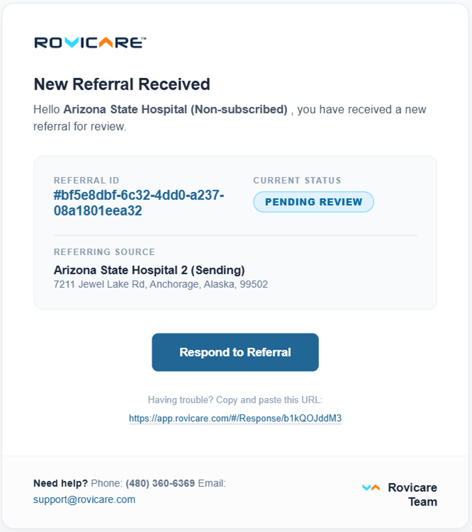
Attachment: The referral will be accompanied by an attachment with a step-by-step instruction guide for how to respond to the referral.
Respond to the Referral: Select the “Respond to Referral” button attached to the email.

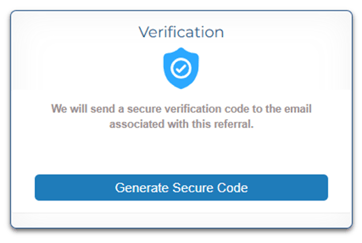
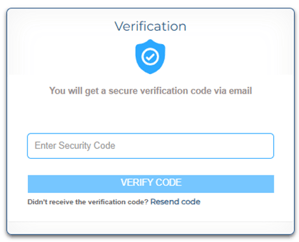
Generate Code: A new window will appear, prompting you to request a one-time code. A new email with the code will be sent to the original email. Input the code once received to see referral information.
Referral: The referral will open, and the organization will be able to view all the information that your organization included in the referral packet.
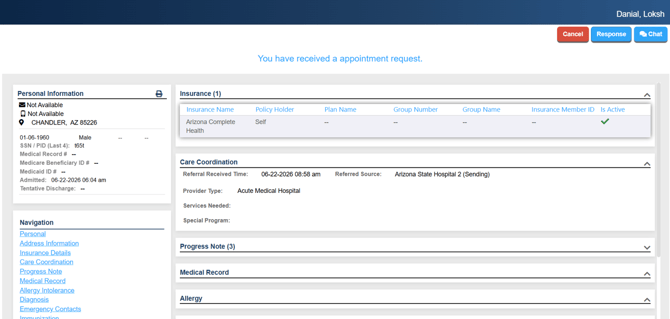
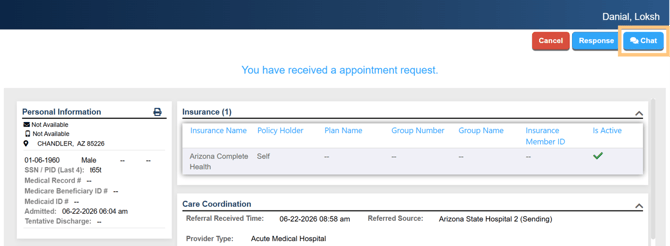
Chat: In the top right corner, there is the HIPAA-compliant chat feature that enables the receiver to communicate directly with your organization. If they receive a message from your organization, they will receive an email notification prompting them to log in and respond.
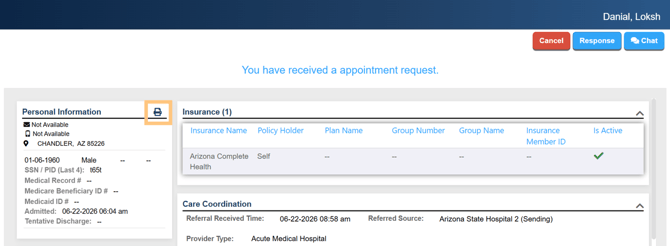
Export: To export a printer-friendly version of the referral and all the attached information, recipients can select the Printer Icon, located next to “Personal Information” in the top left of the page.
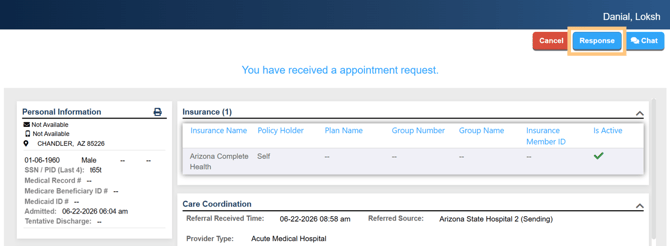
Respond: Recipients can respond to the referral by selecting the blue “Response” Button, located at the top right and bottom right of the page.
Response Window: A new window will appear with the options: In Review, Yes, No
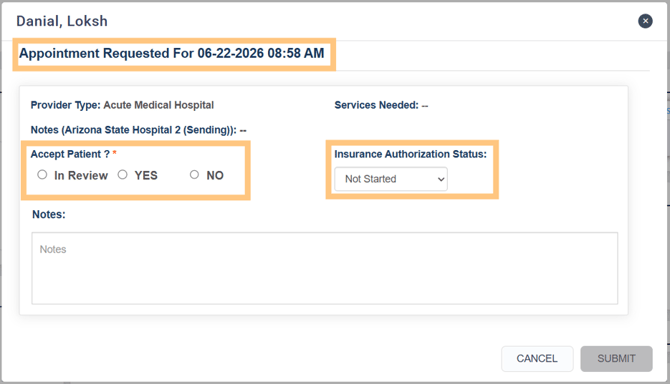
- In Review - Is used for a referral that you are working on but requires further confirmation. Once confirmed, you must utilize the same link to update the referral status to 'Yes' or 'No'.
- Yes - Let the sender know that your organization can accommodate the patient. In addition to saying yes, you will be asked to provide available appointment dates and times for the sender to select from. THIS DOES NOT MEAN THAT YOU HAVE BEEN AWARDED THE REFERRAL.
- No - Let the sender know that you cannot accept the patient, with an option to state why; this helps the sender better organize care elsewhere.
- Once all the information is completed, the recipient will select "Send".

- Confirmed: Service SHOULD NOT BE INITIATED UNTIL THE REFERRAL IS CONFIRMED. You will receive an additional email with a referral confirmation.
- Canceled: If you received a cancellation email, that means that the referral has been awarded to another organization or the service is no longer needed.
NOTE: It is always better to provide a response to the referral rather than leaving it unaddressed. This ensures that the sender can continue to coordinate the best possible care.
If you need additional assistance, please do not hesitate to reach out to:
support@rovicare.com